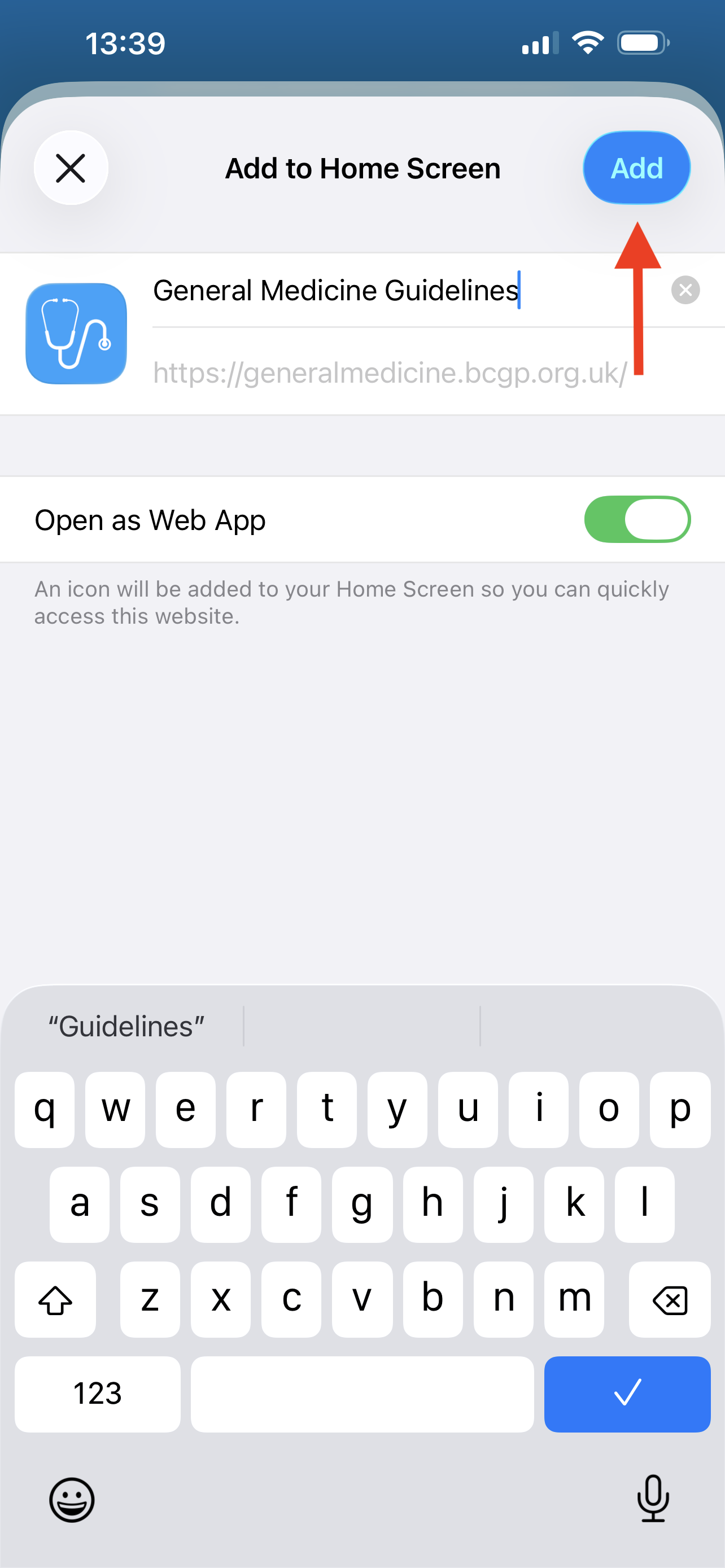
Please select your device and browser from below, or scroll to see the instructions. Whilst we have tried to include most common browsers, the instructions for others should be broadly similar in concept.
Android - Chrome
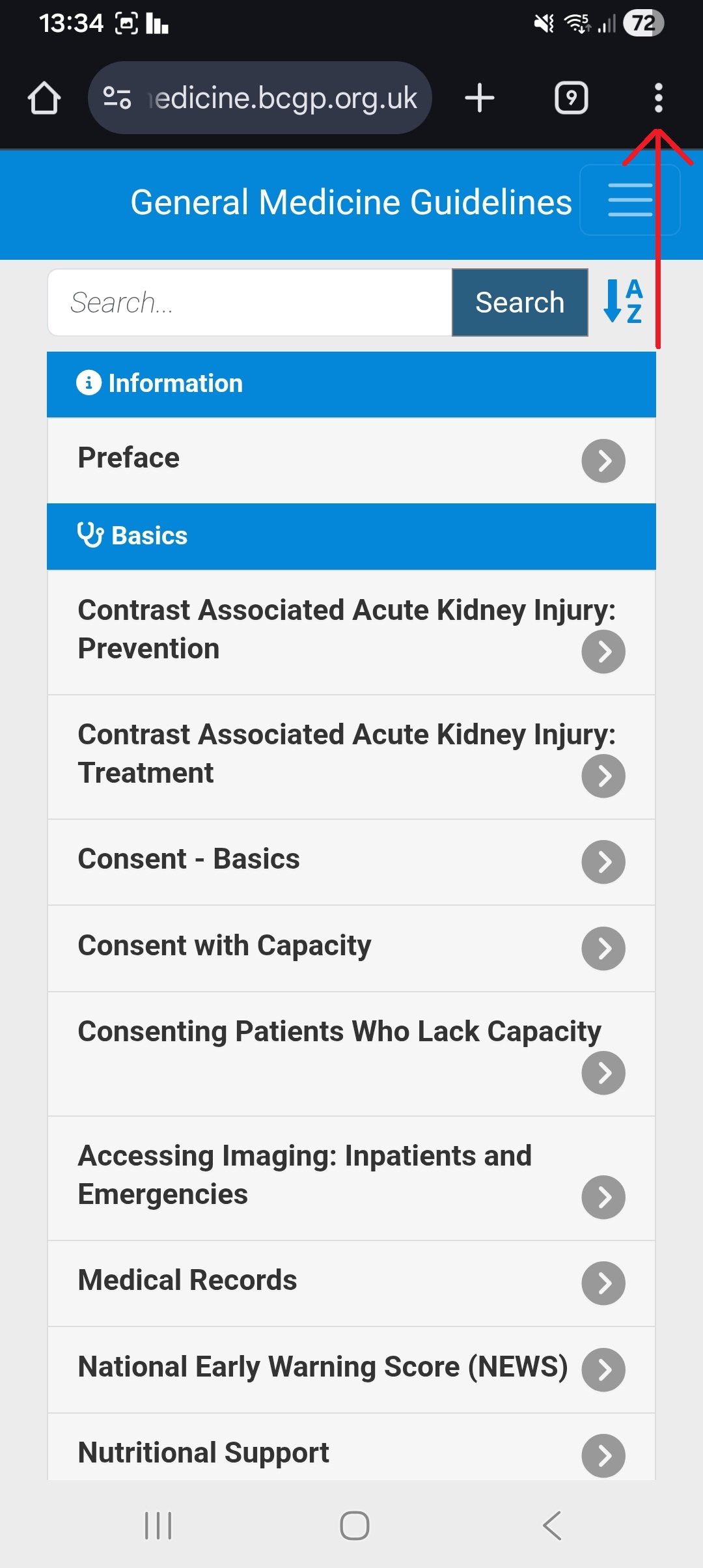
- Open the medical guidelines website in chrome, and tap the 3 vertical dots in the top right corner.
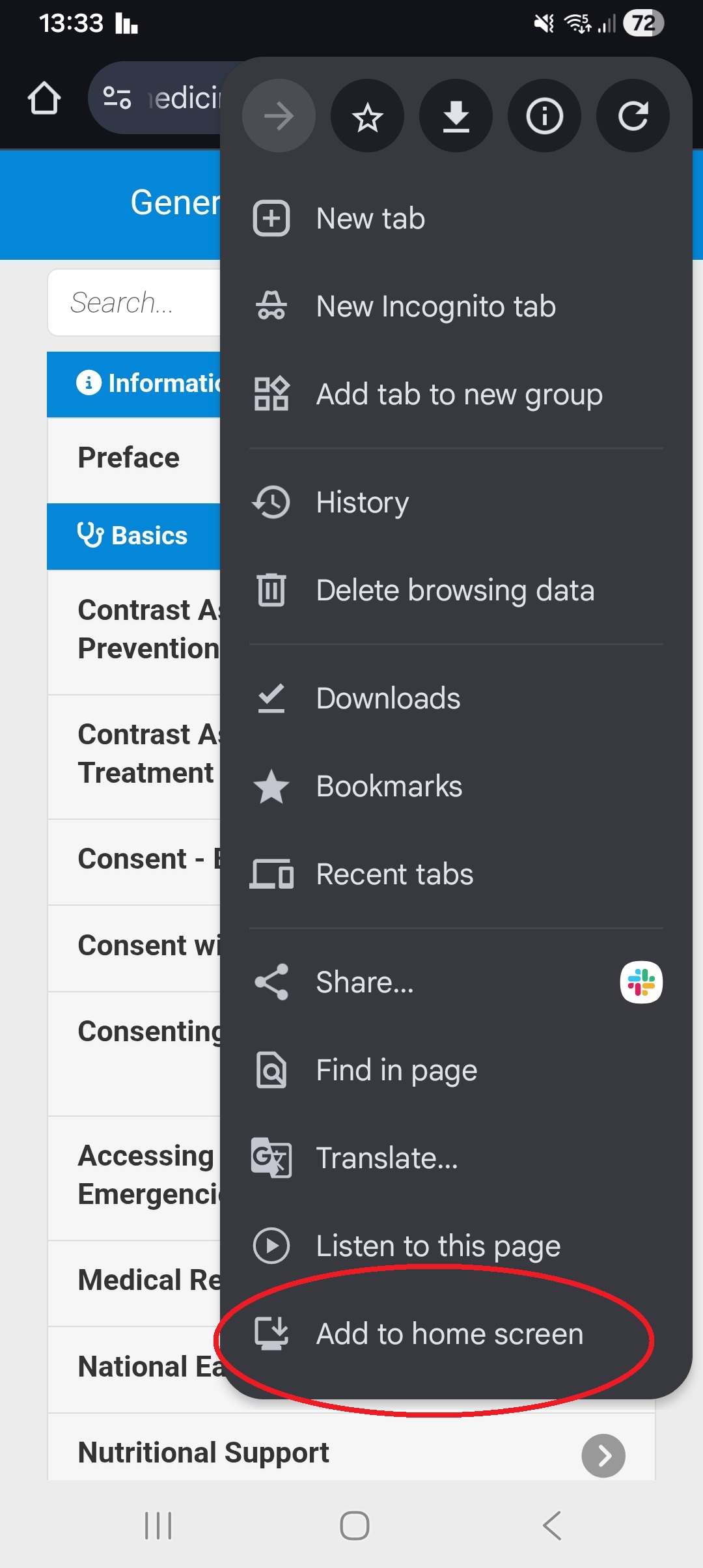
- Select "Add to Home screen" from the menu.
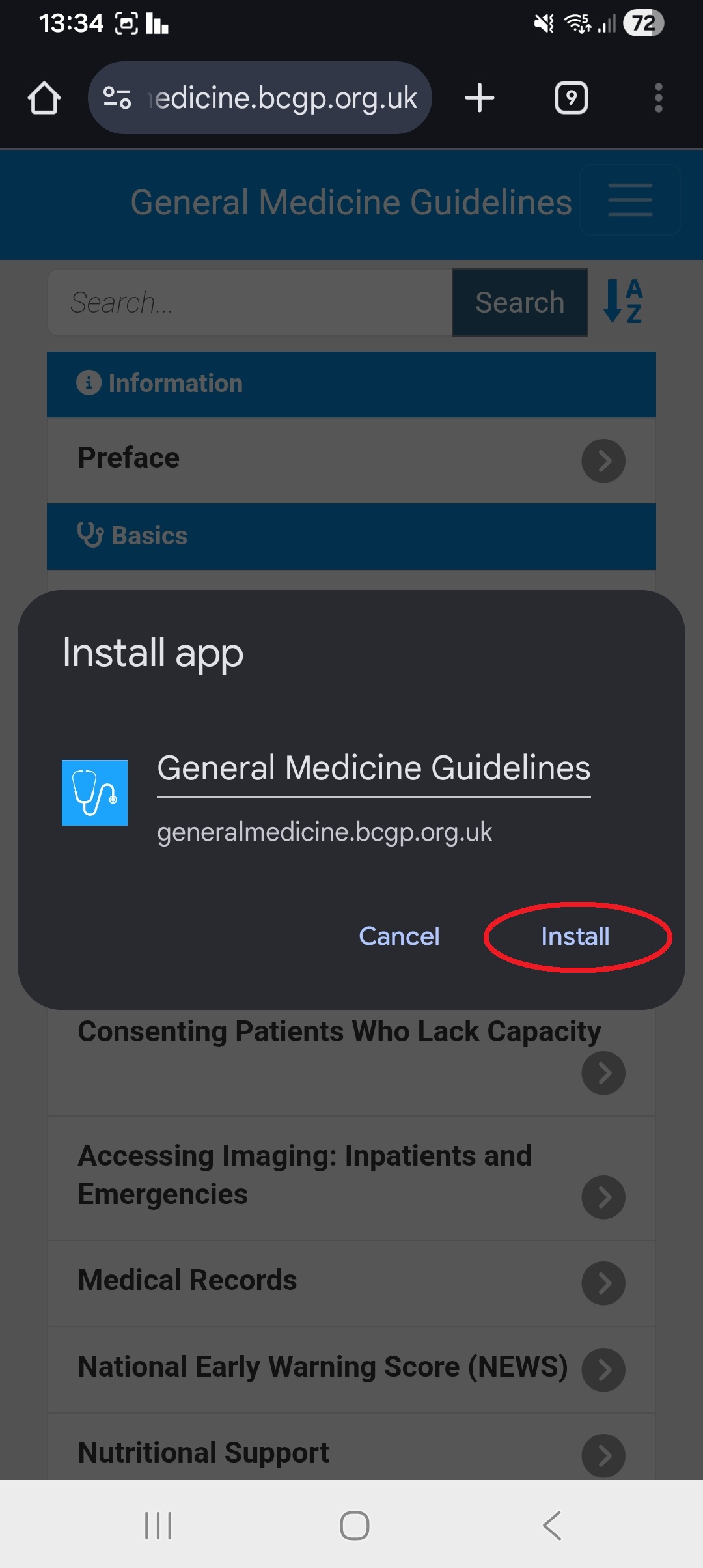
- Tap on "Install"
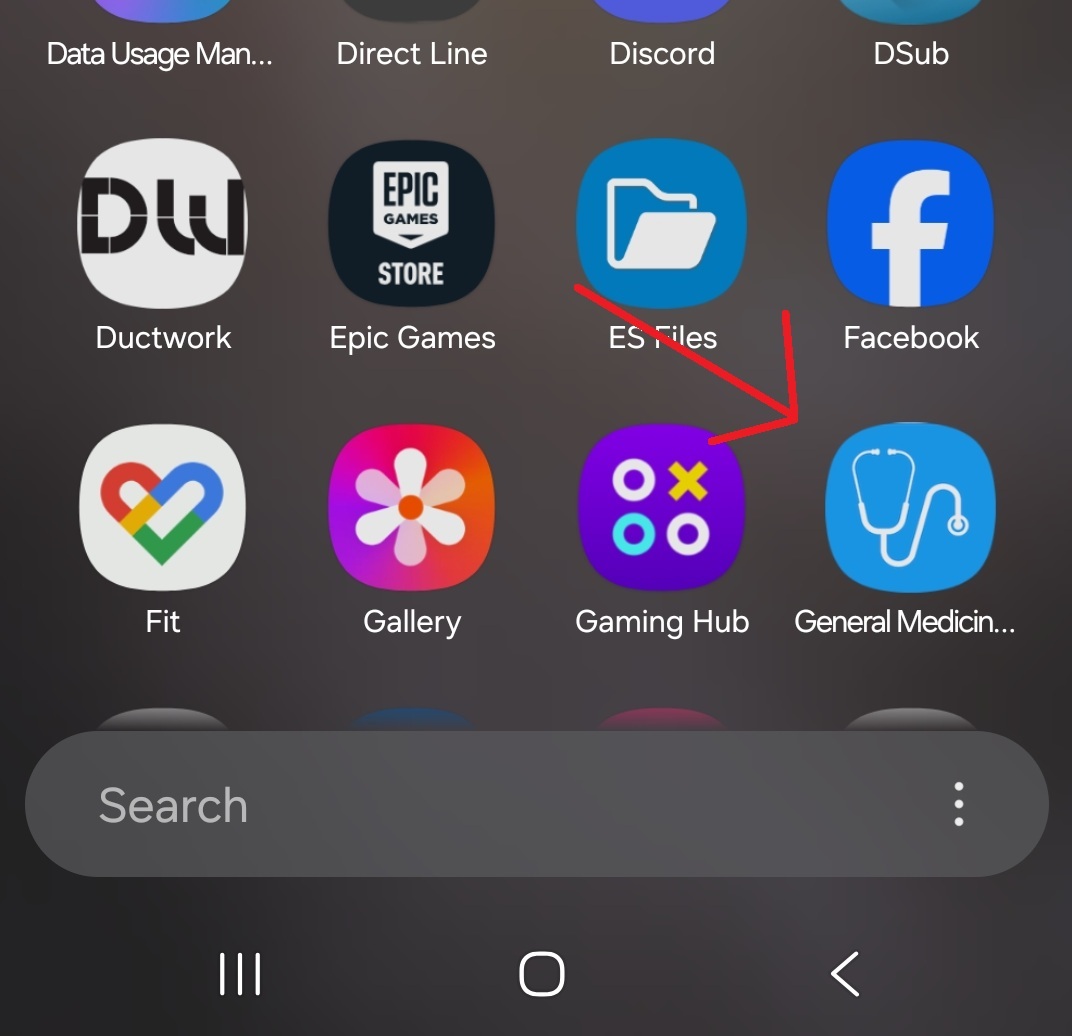
- Once done, the guidelines will show on your home screen along with in your list of apps
Android - Samsung Browser
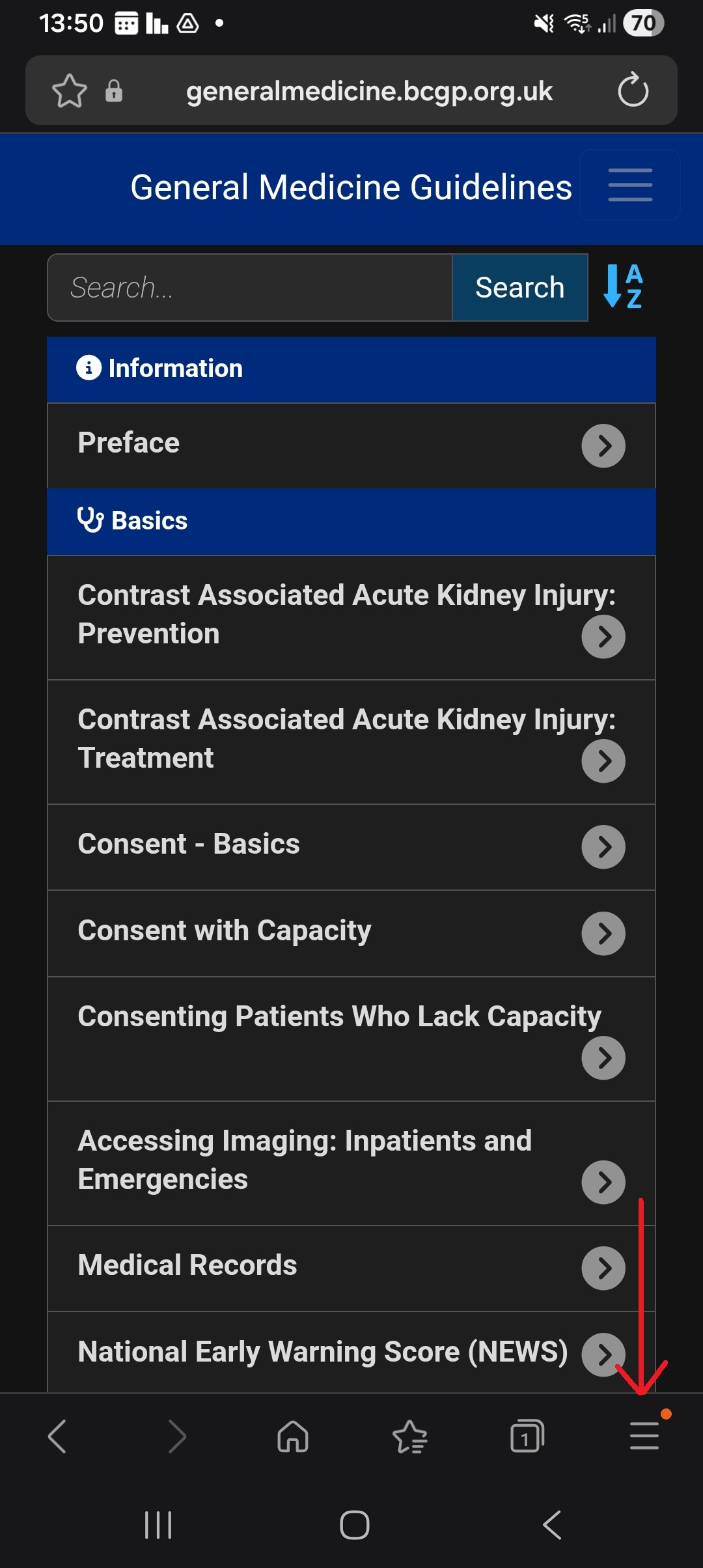
- Tap the Hamburger icon at the bottom right corner of the screen. The menu options will appear.
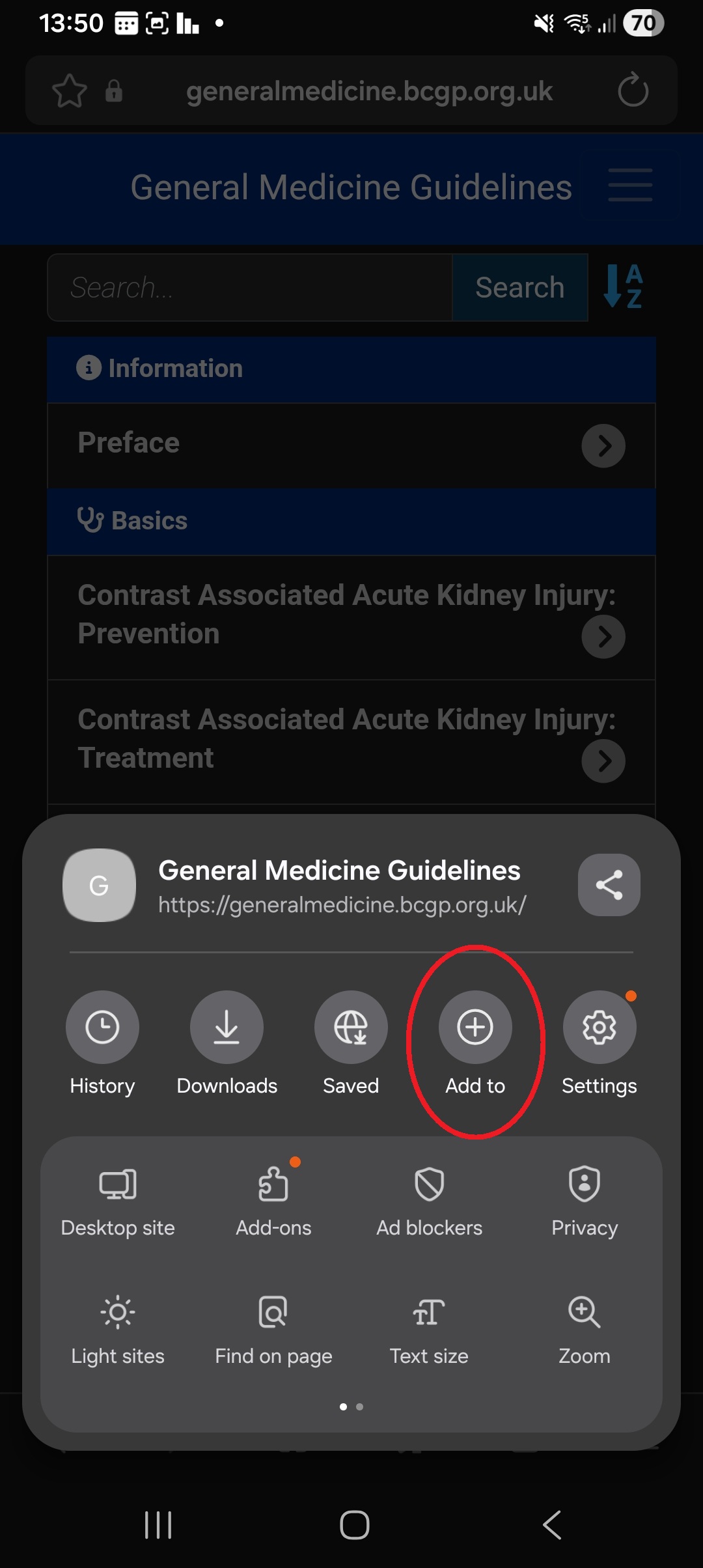
- From the menu, select the "Add to" button.
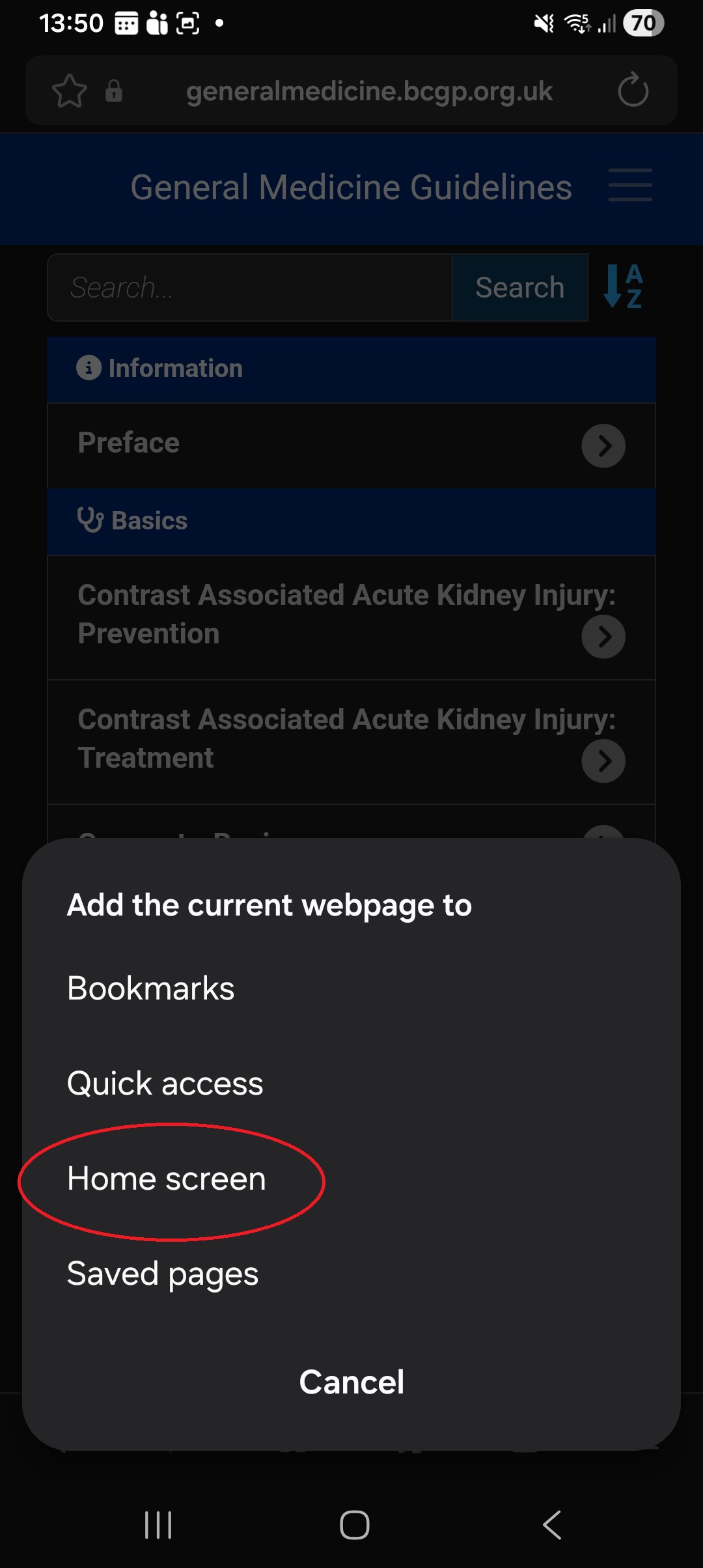
- Choose Home Screen.
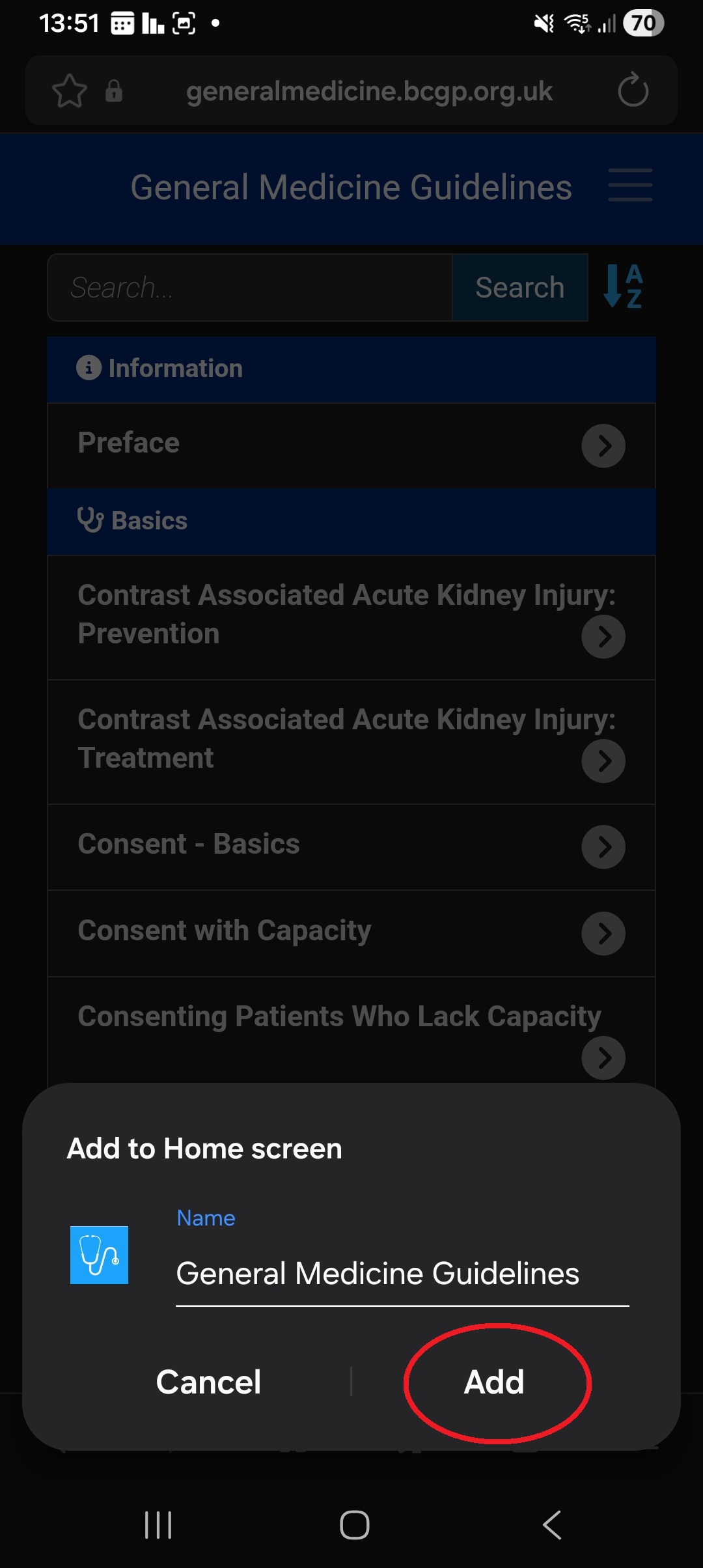
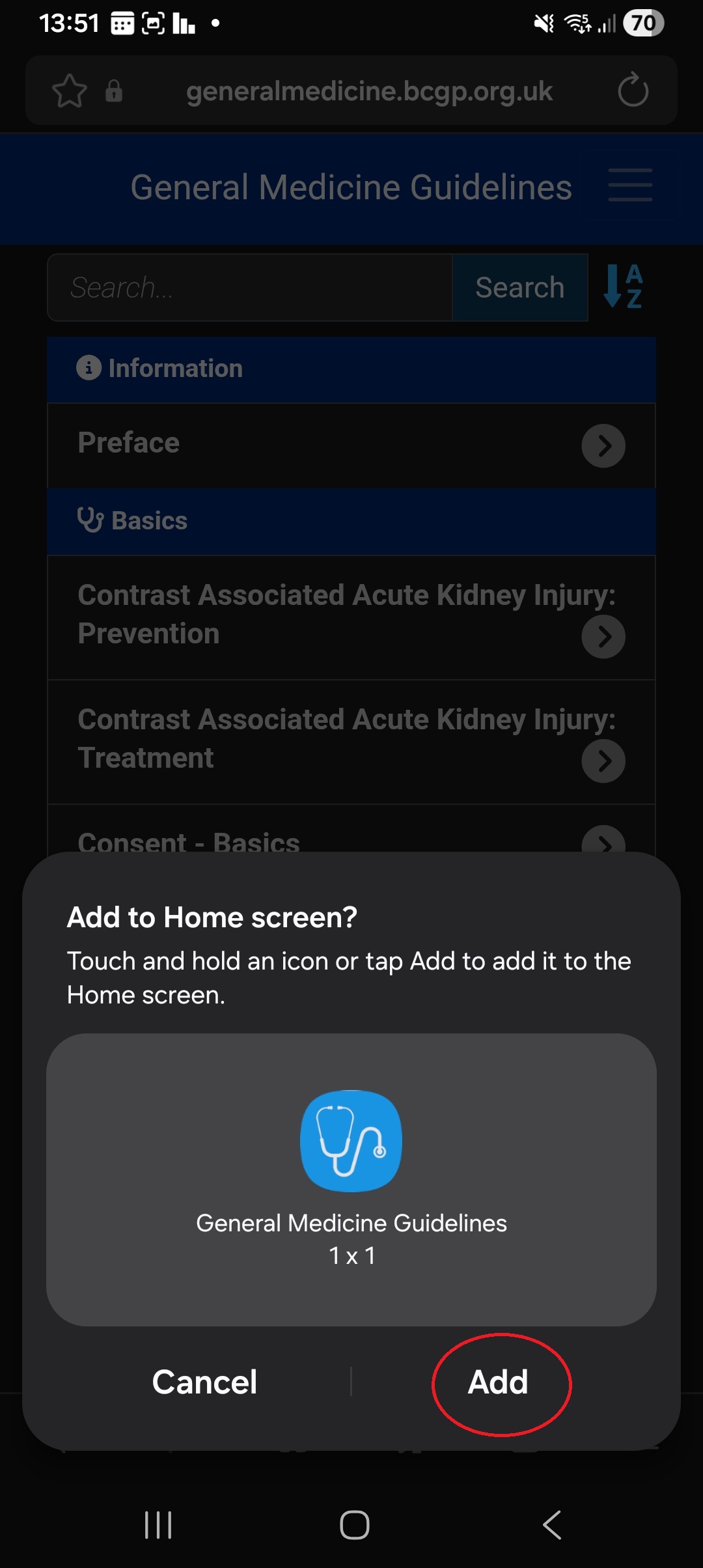
- Then, tap Add to finish. This needs to be done twice
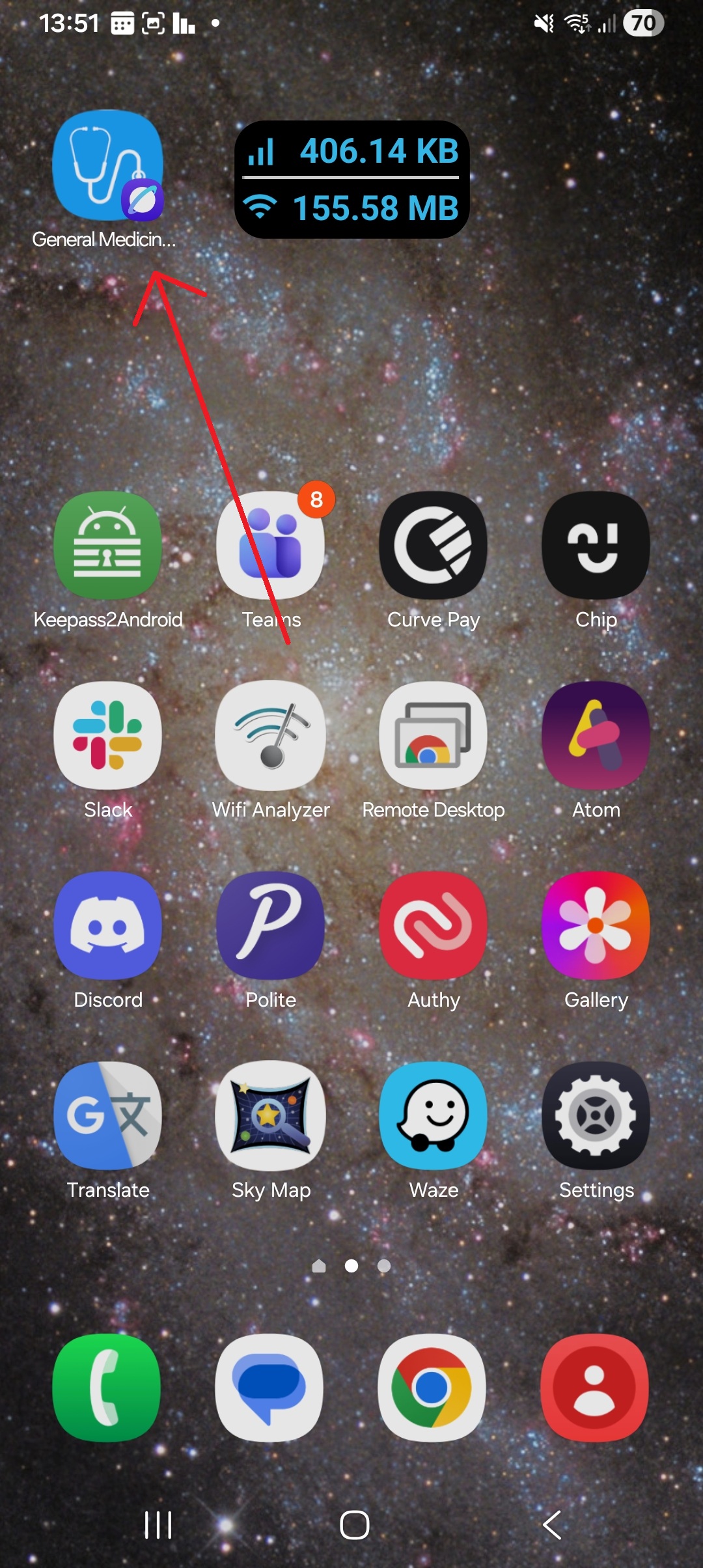
- The guidelines will then appear on your home screen along with in your list of apps
iPhone - Chrome
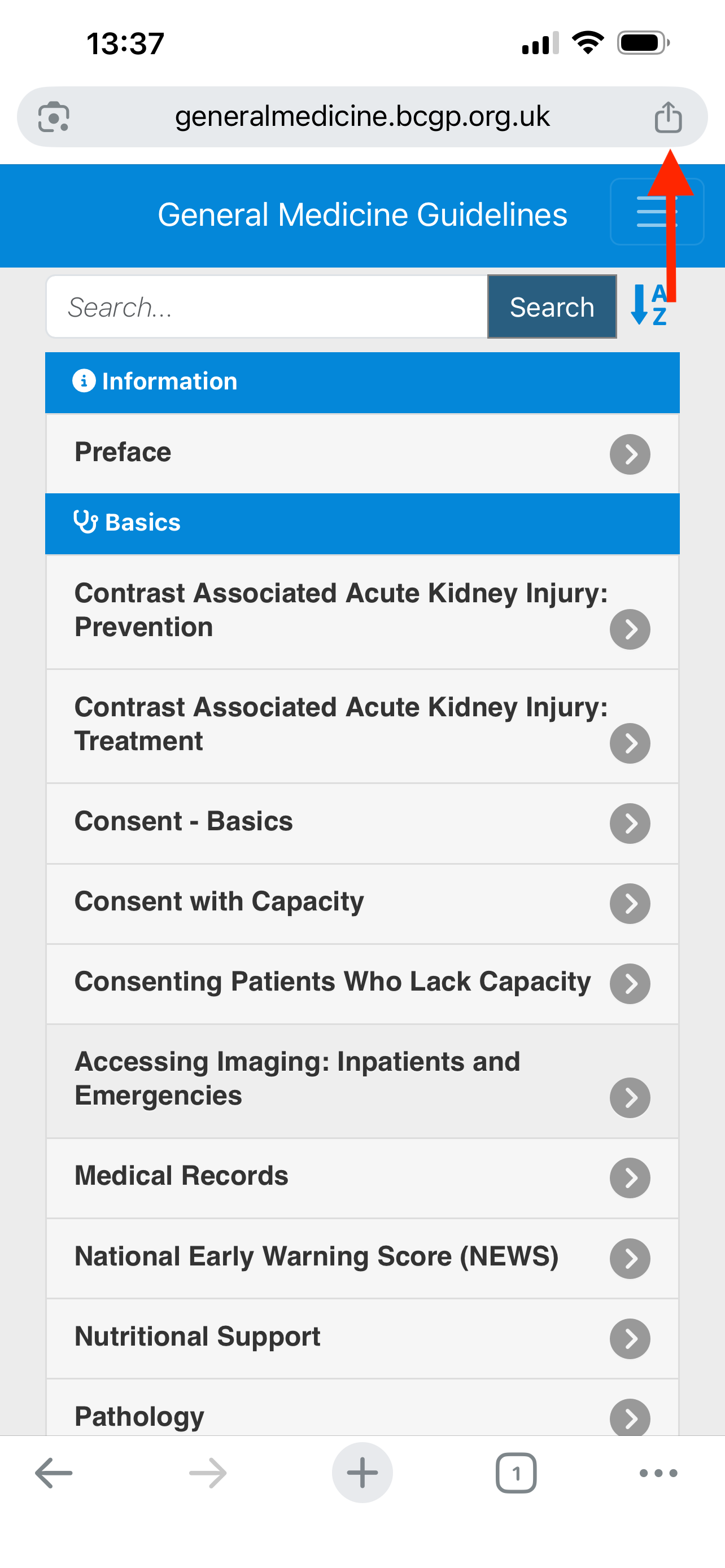
- Open the medical guidelines website in chrome, and tap the share button in the top right corner.
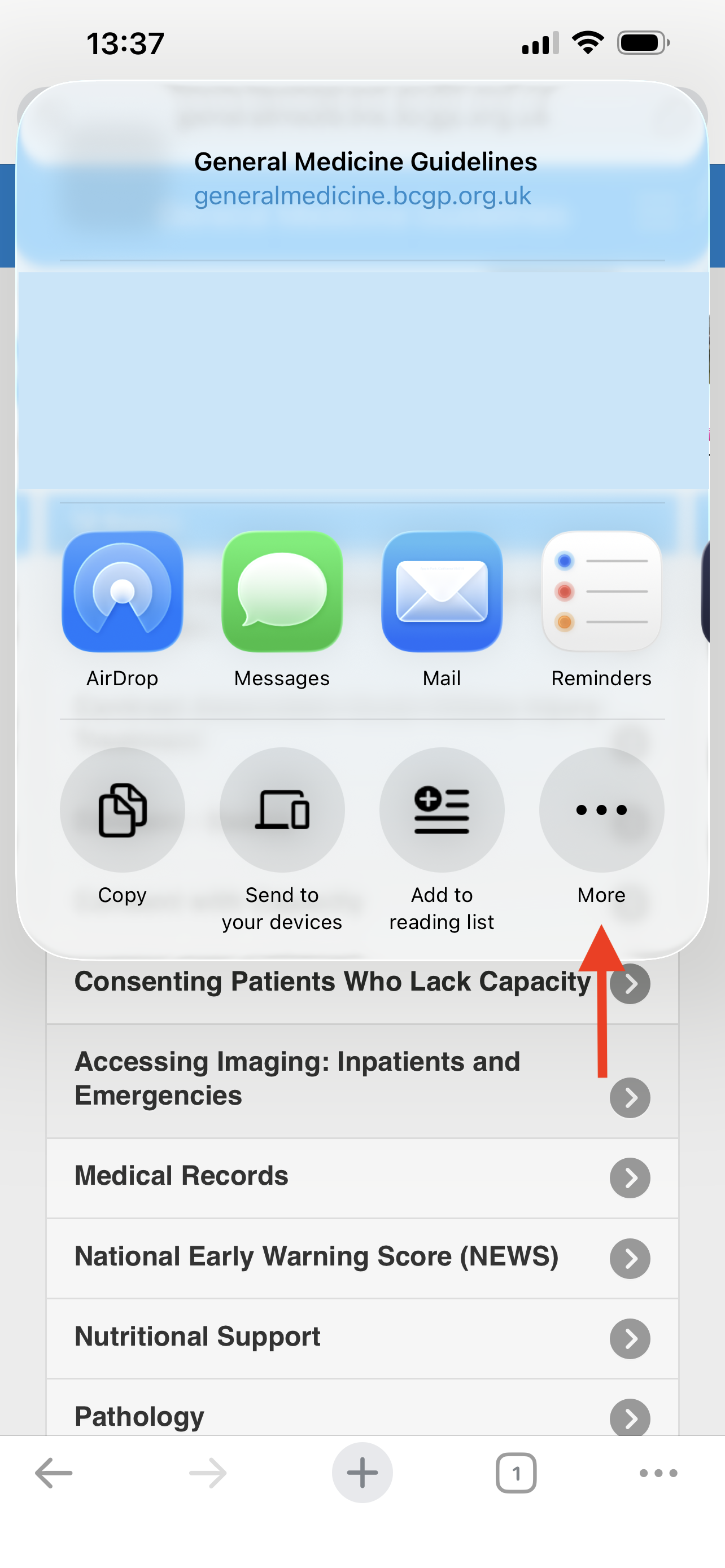
- Tap on the 3 dots with "More" under it
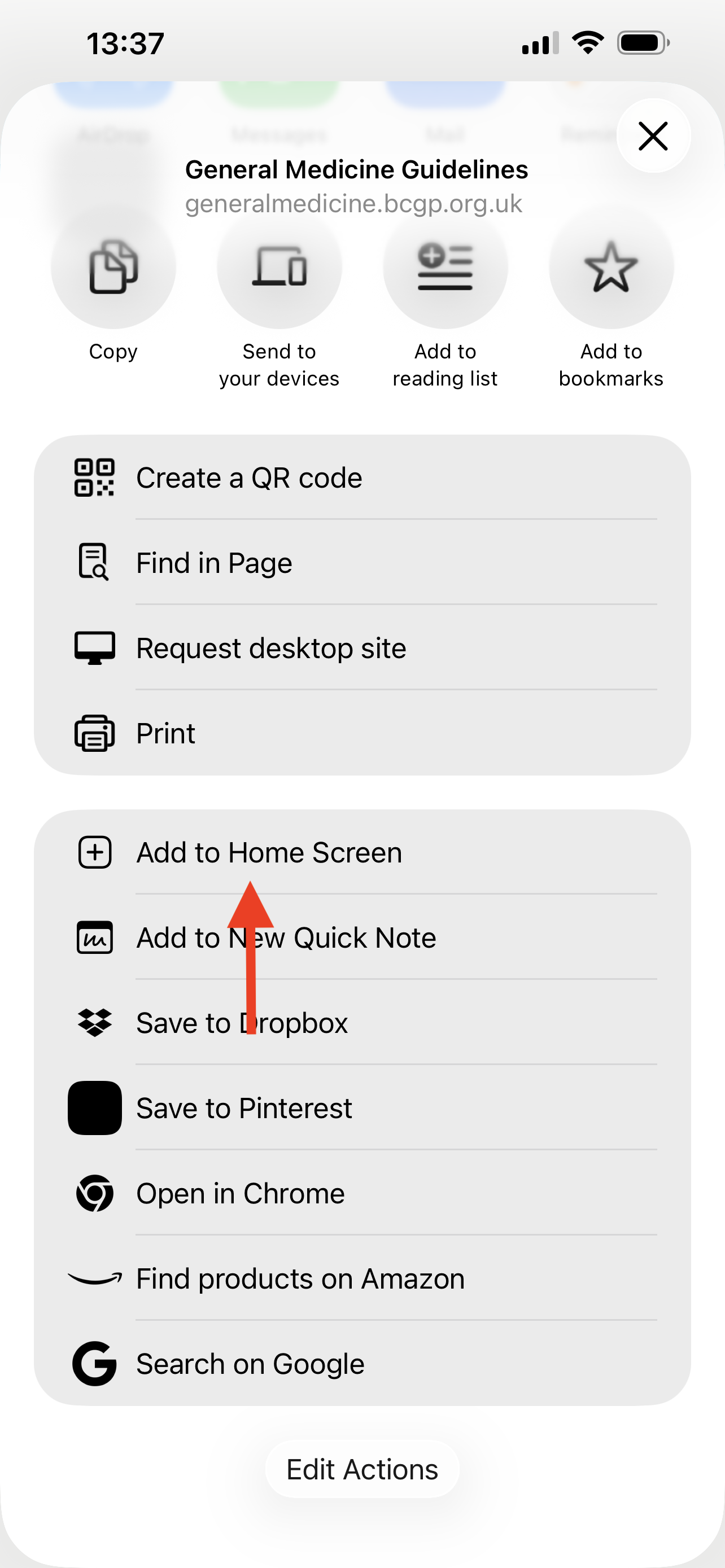
- Tap on "Add to Home Screen"
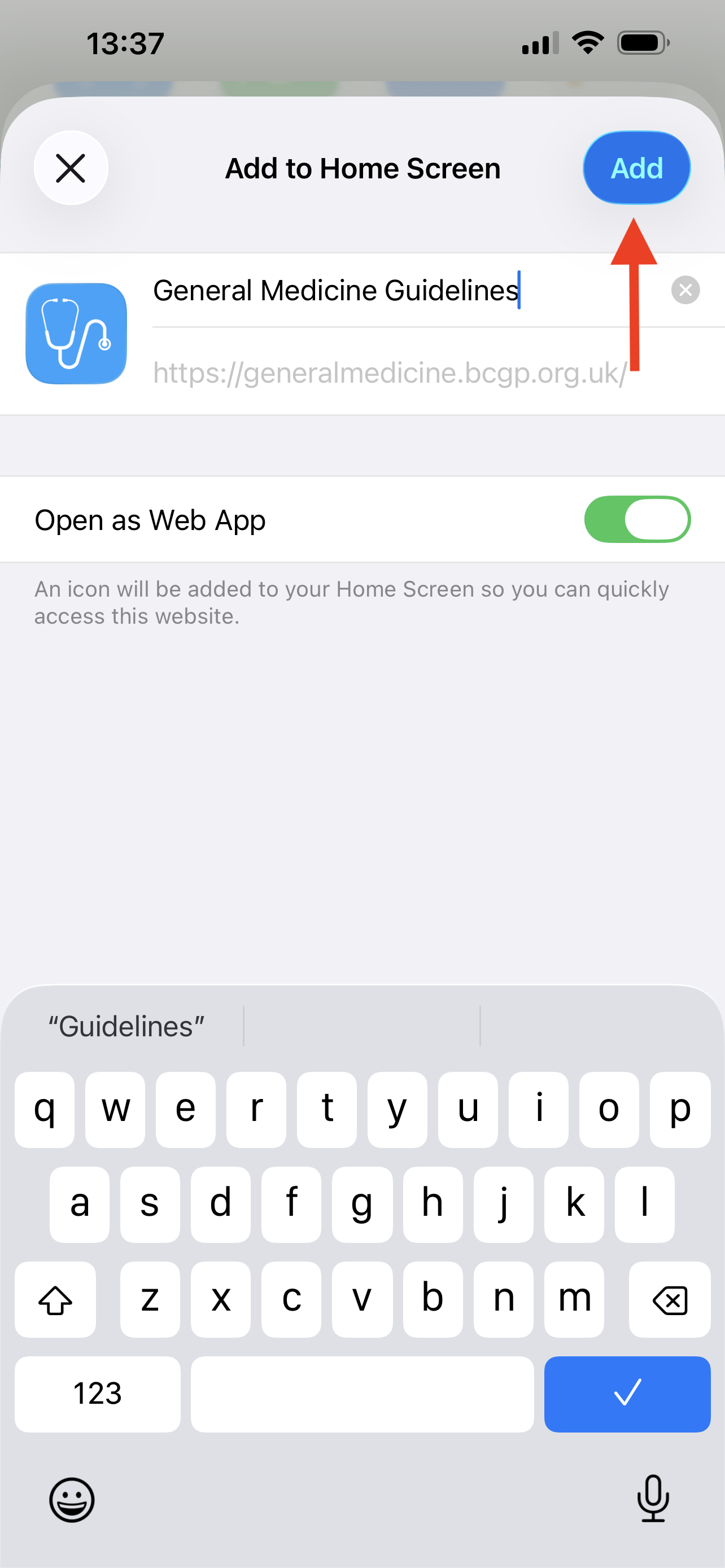
- Tap on "Add" in the top right
iPhone - Safari
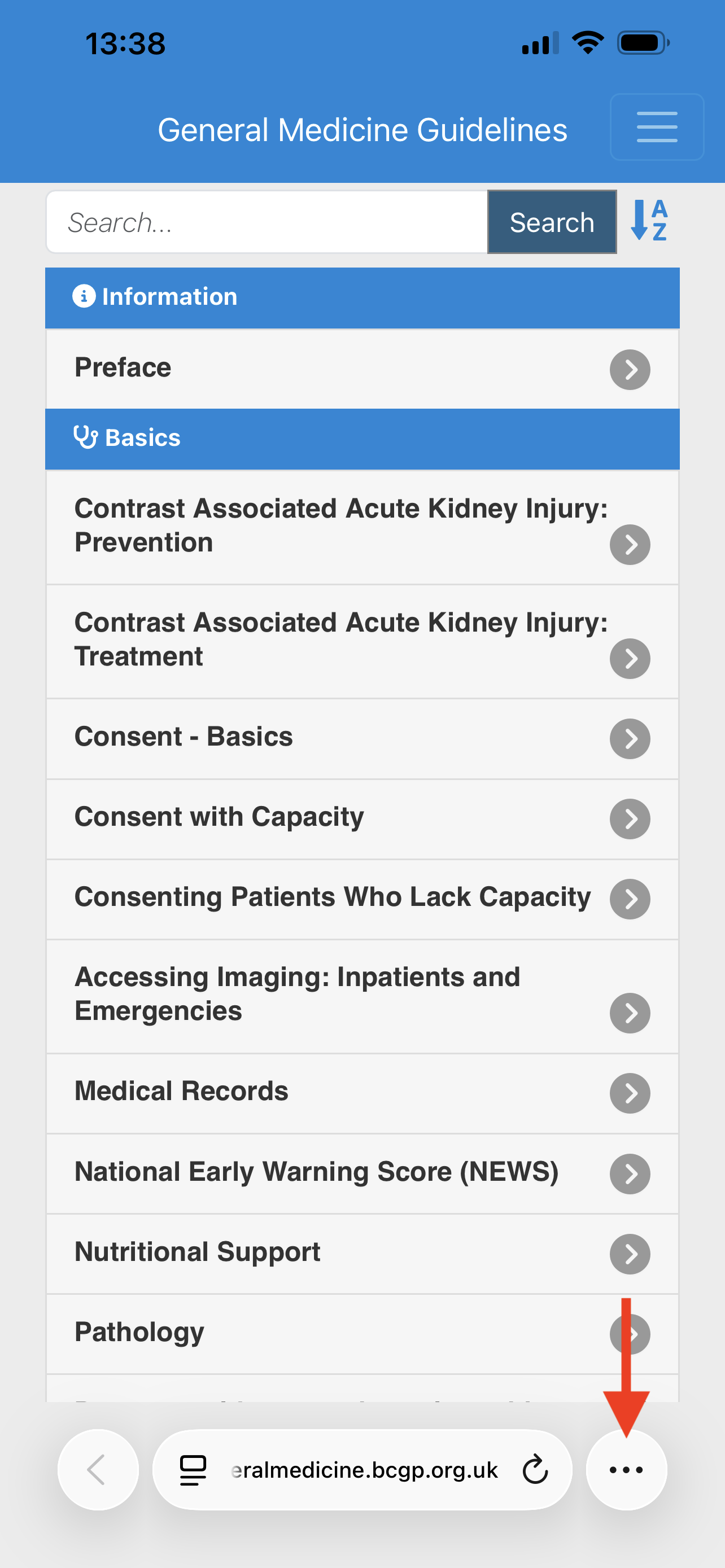
- Open the medical guidelines website in safari, and tap the 3 horizontal dots in the bottom right.
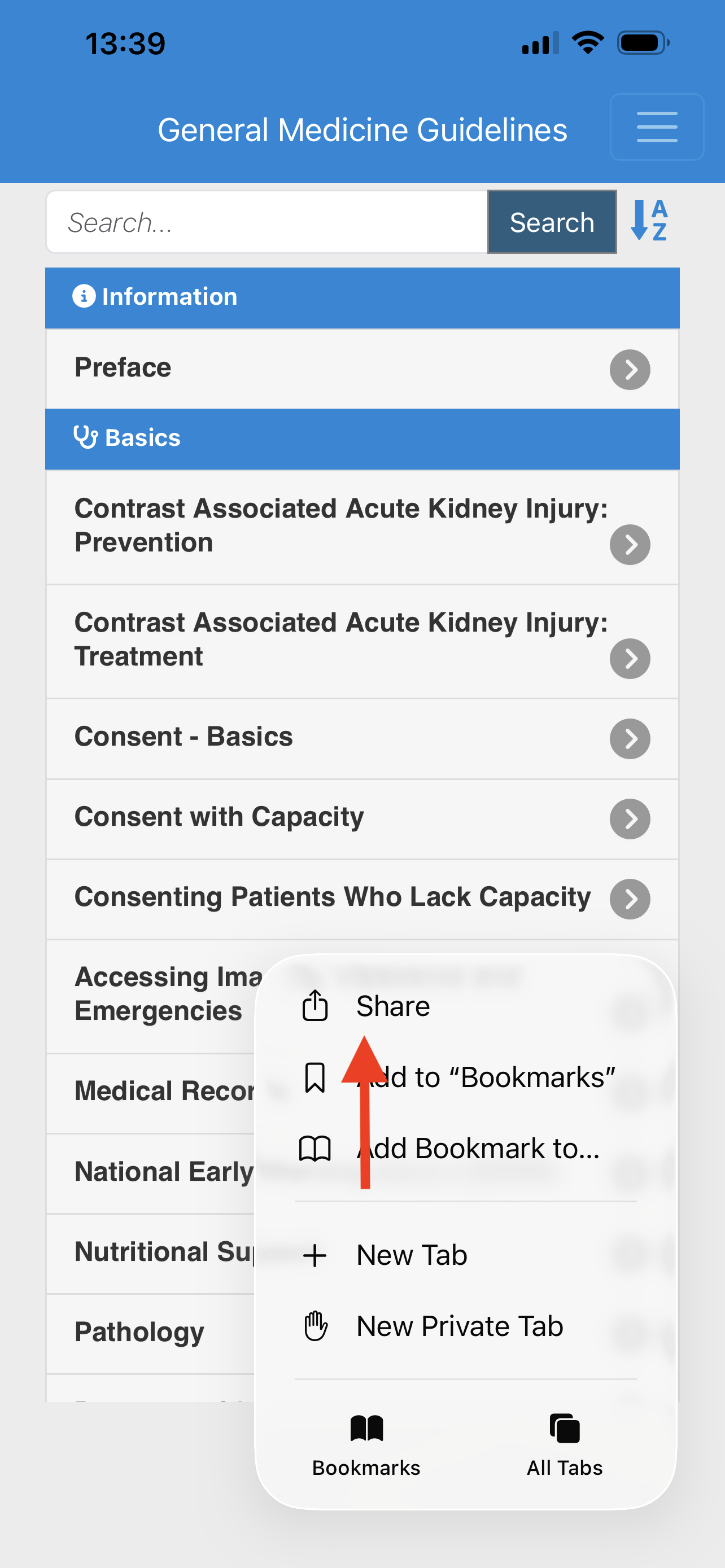
- Tap on "Share" in the menu that apppears
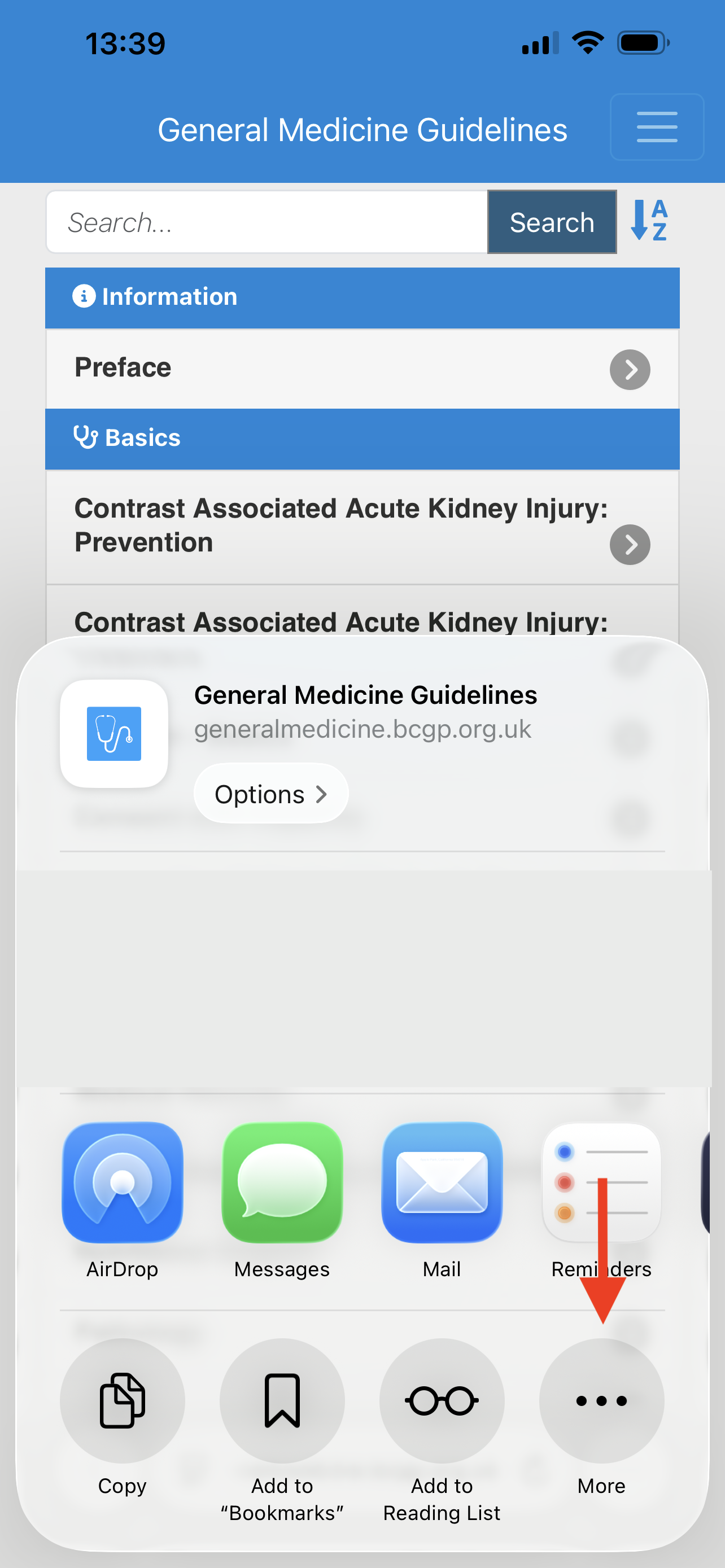
- Tap on the 3 dots with "More" under it
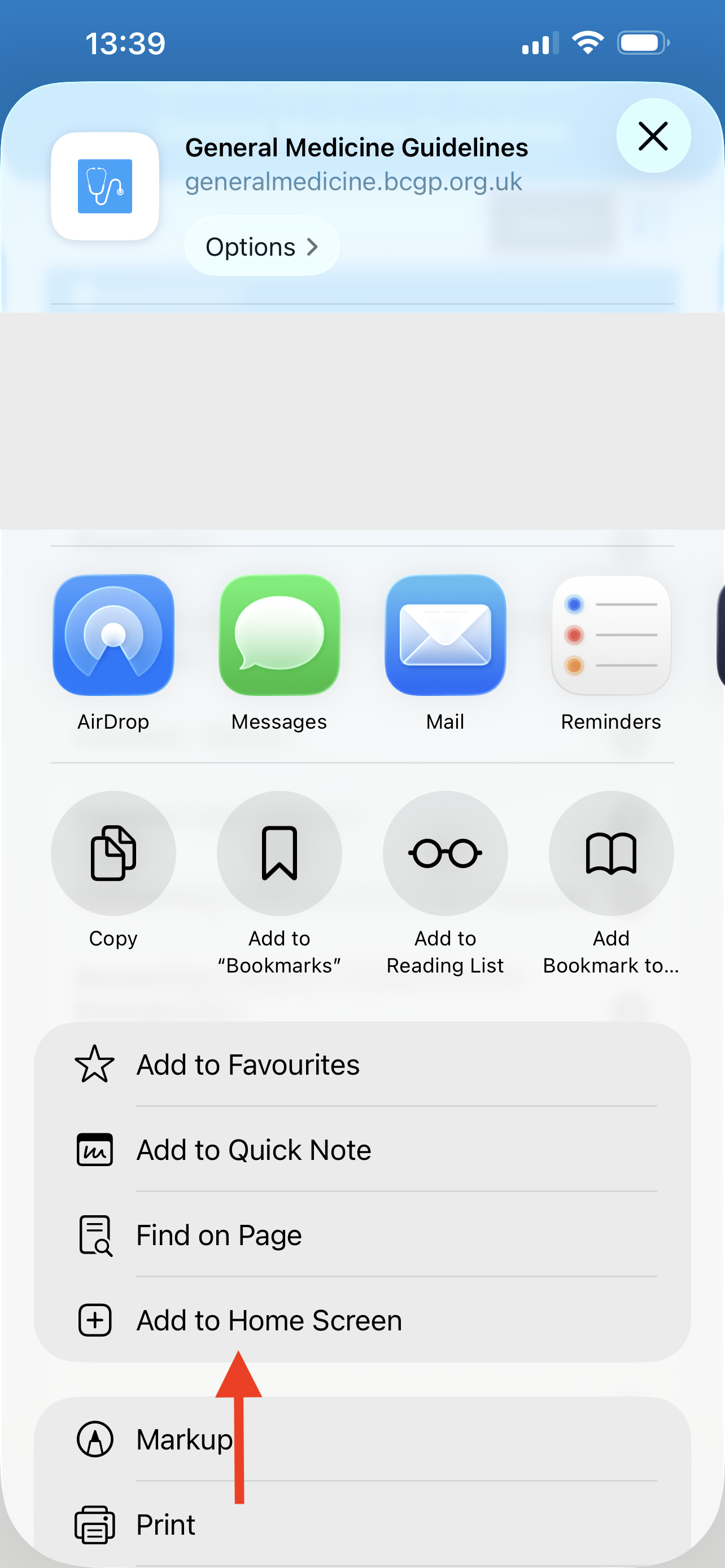
- Tap on "Add to Home Screen"
- Tap on "Add" in the top right